
Build Financial Reports with Natural Language: Meet Your AI Financial Assistant
Stop wrestling with complex formulas. Just tell Calculom what you need, and watch your Odoo financial reports build themselves in seconds.
If you've ever spent an afternoon trying to remember the exact syntax for an Excel formula—or worse, hunting through documentation to figure out which function pulls budget data versus actuals—you're not alone. Financial reporting in Excel has always been powerful, but it's never been what anyone would call "intuitive."
That's why we built the AI Financial Assistant directly into Calculom. It's not a gimmick or a bolt-on feature. It's a fundamental shift in how you interact with your Odoo financial data. Instead of memorizing formulas, you simply describe what you need in plain English. The AI handles the rest.
Whether you're a long-time Calculom user or just exploring your options for Odoo reporting, this feature changes everything about how fast you can move from question to answer.
What We'll Cover
The Hidden Cost of Formula-Based Reporting
Let's be honest about something: Excel is the backbone of financial reporting for a reason. It's flexible, powerful, and every finance professional knows how to use it. But there's a dirty secret that nobody talks about at conferences—the amount of time we waste on formula syntax.
Think about the last time you built a new report. How much of that time was spent on the actual financial analysis versus figuring out how to pull the right data? If you're connecting to an ERP like Odoo, you're dealing with custom functions that have specific parameters in specific orders. Miss one parameter? Error. Wrong date format? Error. Forget the company ID? You guessed it—error.
The Formula Tax You're Paying
Every time you build a report manually, you're paying a hidden tax:
- Syntax lookup time: 5-15 minutes per new formula type
- Trial and error: 10-20 minutes debugging parameter order
- Report structure: 30-60 minutes setting up headers, parameters, and cell references
- Repetitive setup: Recreating the same patterns month after month
For a quarterly P&L with 20 accounts? You're looking at 2-3 hours of setup time before you even start analyzing the numbers.
And here's what makes it worse: you already know what you want. You can describe it perfectly in plain English. "I need a quarterly P&L for 2024 showing revenue, COGS, and operating expenses with a comparison to budget." That sentence took you five seconds to think of. Building it manually? That's your afternoon.
How the AI Financial Assistant Works
The AI Financial Assistant built into Calculom does exactly what you'd hope: it translates your natural language requests into fully-functional Excel formulas and complete report structures. No syntax memorization. No parameter guessing. Just describe what you need.
From Words to Working Reports
Type a request like "Create a quarterly P&L for 2024 with accounts 4*, 5*, 6*" and the AI:
- Generates all necessary ODOO formulas with correct syntax
- Creates a parameter block so you can change dates/company with one edit
- Structures the report with proper headers and formatting
- Inserts everything into Excel with a single click
Total time: About 30 seconds.
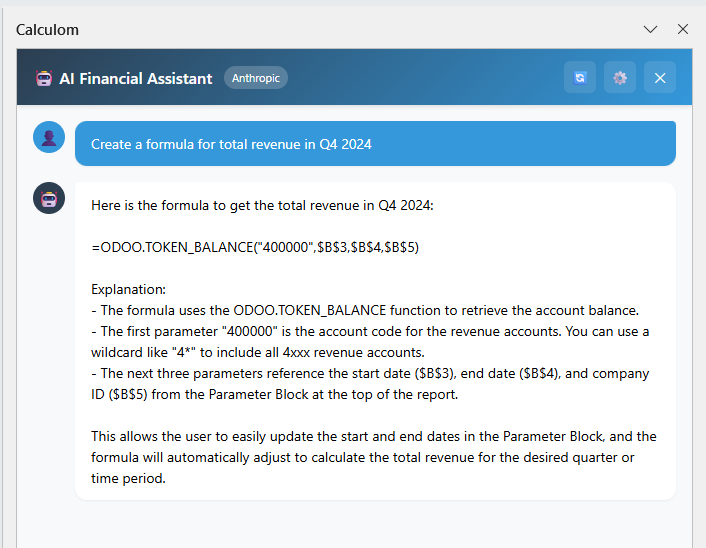
The interface is deliberately simple. You'll see a chat panel where you type your request just like you'd message a colleague. The AI responds with either a single formula (for simple queries) or a complete action plan (for multi-cell reports). You preview what's about to happen, click "Apply to Excel," and you're done.
The Conversation Flow
Here's what a typical interaction looks like:
You: "Show me the balance for account 400000 this year"
AI: "Here's a formula to get the balance for account 400000 for the current year:"
=ODOO.TOKEN_BALANCE("400000","2024-01-01","2024-12-31",1)
Click "Insert into Cell" → Formula appears in your selected cell → Done.
For more complex requests, the AI shows you an "Actions Preview" card that outlines everything it's about to do: create a new sheet, insert a grid of data and formulas, apply formatting. You see the full plan before anything touches your spreadsheet.
Ready to Stop Wrestling with Formulas?
The AI Financial Assistant is available now for all Calculom users. Try it free and see how fast financial reporting can be.
No credit card required • Full access • Cancel anytime
Key Capabilities That Matter
We didn't build this AI assistant to be a party trick. Every capability was designed around real problems we've heard from finance teams connecting Excel to Odoo. Here's what makes it genuinely useful:
Bring Your Own AI Provider
This is a big one. The AI Financial Assistant supports multiple providers—OpenAI (GPT-4), Anthropic (Claude), and Azure OpenAI. You use your own API key, which means:
- No markup on AI costs: You pay the provider directly at their published rates
- Your choice of model: Prefer Claude's reasoning? GPT-4's speed? Your call
- Full control: Your API key, your usage limits, your data policies
Pro Tip: Choosing Your Provider
Not sure which AI provider to use? Here's a quick guide:
- OpenAI GPT-4: Best for complex, multi-step reports. Slightly higher cost, excellent accuracy.
- Anthropic Claude: Great for conversational back-and-forth. Often better at following specific formatting instructions.
- Azure OpenAI: Ideal if your organization already has an Azure agreement or needs enterprise compliance.
You can switch providers anytime—your conversation history stays with Calculom, not the AI provider.
The Parameter Block Pattern
Every report the AI generates includes what we call a "Parameter Block"—a standardized section at the top of your report where you can change key variables without editing formulas.
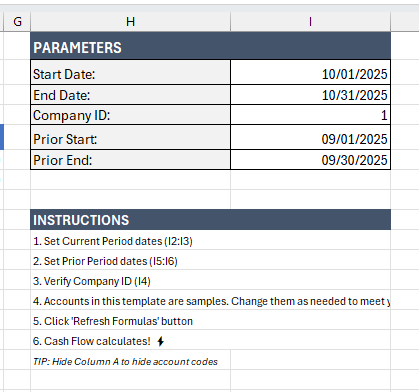
Here's why this matters: when you need to run the same report for a different quarter or a different company, you change one or two cells. Every formula in the report automatically updates because they all reference those parameter cells. No find-and-replace. No missed cells. No errors.
Smart Report Actions
For multi-cell reports, the AI doesn't just give you formulas—it gives you a complete action plan:
| Action Type | What It Does | When It's Used |
|---|---|---|
| Create Sheet | Creates and switches to a new worksheet | New reports that shouldn't overwrite existing data |
| Insert Grid | Inserts a 2D array of values and formulas | Building out report structure with headers and data rows |
| Insert Values | Places specific values in specific cells | Adding individual formulas or labels |
| Format | Applies styling (headers, currency, percentages) | Making reports presentation-ready |
You see all of this in the Actions Preview before you click "Apply." If something doesn't look right, you can refine your request. The AI learns from the conversation context, so follow-up requests like "Actually, add a column for variance percentage" work exactly as you'd expect.
Full Formula Library Access
The AI knows every Calculom formula and how to use them correctly. That includes:
ODOO.TOKEN_BALANCE— Account balances for any date rangeODOO.TOKEN_DEBITandODOO.TOKEN_CREDIT— Detailed transaction analysisODOO.TOKEN_MOVEMENT— Net changes over a periodODOO.TOKEN_BUDGET— Budget amounts by account and periodODOO.TOKEN_ACCOUNT_NAME— Dynamic account descriptionsODOO.TOKEN_ANALYTIC_BALANCE— Cost center and department breakdowns
The AI also understands wildcards. Ask for "all revenue accounts" and it knows to use "4*" to capture everything starting with 4. Ask for "operating expenses excluding depreciation" and it can structure the query accordingly.
Real-World Examples: From Request to Report
Theory is great, but let's look at what this actually looks like in practice. Here are three common scenarios and exactly how the AI handles them:
Your Request: "Create a quarterly P&L for 2024 showing revenue, cost of goods sold, and operating expenses"
What the AI Creates:
- New worksheet named "Q1-Q4 P&L 2024"
- Parameter block with Start Date, End Date, Company ID
- Four columns (Q1, Q2, Q3, Q4) with date ranges auto-calculated
- Revenue accounts (4*), COGS (5*), Operating Expenses (6*)
- Subtotals and Net Income calculations
- Proper formatting for headers and currency
Time: ~45 seconds from request to finished report
Your Request: "Build a budget vs actual comparison for Q3 operating expenses with variance percentages"
What the AI Creates:
- Parameter block including Budget Name field
- Columns: Account, Description, Budget, Actual, Variance ($), Variance (%)
- Operating expense accounts with
ODOO.TOKEN_BUDGETandODOO.TOKEN_BALANCEformulas - Variance calculations with conditional formatting cues
- Totals row at the bottom
Time: ~60 seconds including the follow-up to add variance percentages
Your Request: "Generate a trial balance for year-end with debit and credit columns"
What the AI Creates:
- All balance sheet and income statement accounts
- Separate Debit and Credit columns using
ODOO.TOKEN_DEBITandODOO.TOKEN_CREDIT - Account codes with dynamic names via
ODOO.TOKEN_ACCOUNT_NAME - Totals row confirming debits equal credits
Time: ~30 seconds for a complete trial balance structure
See It In Action
Want to see the AI Financial Assistant build a report in real-time? Schedule a quick demo and we'll walk through your specific use case.
Security, Privacy, and Your API Keys
We know finance teams handle sensitive data. That's why security wasn't an afterthought—it's built into the architecture of how the AI Assistant works.
Your API Key, Your Control
When you configure the AI Assistant, you provide your own API key from OpenAI, Anthropic, or Azure. That key is encrypted using AES-256 encryption before it ever touches our database. We never see your key in plain text, and we never use it for anything other than processing your requests.
Why "Bring Your Own Key" Matters
Some AI integrations route everything through a shared API key owned by the software vendor. That means:
- The vendor controls (and marks up) your AI costs
- Your prompts mix with other customers' data
- You have no visibility into usage or spending
With Calculom, your API key means your data goes directly to your chosen provider under your agreement with them. Full stop.
Granular Privacy Controls
You decide exactly what financial context the AI can see. The privacy settings let you control:
- Whether to share account codes with the AI
- Whether to share account names
- Whether to share company names
- Whether to share balance amounts
- Maximum number of accounts to include in context
If your compliance requirements say no financial data leaves your environment, you can still use the AI for formula generation—it just won't have account-specific context to work with. You'll describe what you need, and it'll generate the formula structure for you to fill in.
Multi-Tenant Isolation
For organizations with multiple companies in Odoo, each company's AI configuration is completely isolated. Different API keys, different privacy settings, different conversation histories. There's no cross-contamination between entities.
The Time You'll Get Back
Let's put some numbers on this. We're not going to pretend these are scientific measurements—every finance team is different. But based on the tasks the AI handles, here's a realistic look at time savings:
Time Savings Calculator
If you build just 4 reports per month, that's 10 hours saved monthly—or 120 hours per year.
At a fully-loaded cost of $75/hour for finance staff, that's $9,000/year in recovered capacity.
And that's just the direct time savings. There's also the cognitive load you're not spending on formula syntax, the errors you're not making because the AI handles parameter order, and the frustration you're not experiencing at 4:30 PM when a report is due.
How Much Time Could You Save?
Every finance team has different reporting needs. Start a free trial and see how the AI Assistant fits into your workflow.
Full access to all features including AI Assistant
Getting Started in 5 Minutes
If you're already using Calculom, the AI Assistant is ready to go. If you're new, here's how fast you can be up and running:
For Existing Calculom Users
- Click the AI Assistant button in the Calculom panel (look for the 🤖 icon)
- Enter your API key from OpenAI, Anthropic, or Azure
- Choose your model (we'll show you available options after validating your key)
- Set your privacy preferences for what financial context to share
- Start chatting—ask for a formula, request a report, or just explore
The whole setup takes about 2 minutes. Your first report? Maybe another minute after that.
For New Users
- Sign up for a free trial at calculom.com
- Connect your Odoo instance (guided setup, no IT required)
- Install the Excel add-in (works with Excel desktop and Excel Online)
- Configure the AI Assistant with your API key
- Build your first report in plain English
Don't Have an AI API Key Yet?
Getting an API key is straightforward:
- OpenAI: Visit platform.openai.com and create an account. API access starts at pay-as-you-go pricing.
- Anthropic: Sign up at console.anthropic.com for Claude API access.
- Azure OpenAI: If you have an Azure subscription, request access through the Azure portal.
Most users spend $5-20/month on AI costs depending on usage—a fraction of the time savings value.
Key Takeaways
- Natural language in, working reports out: Describe what you need in plain English. The AI handles formula syntax, parameter order, and report structure.
- Your AI provider, your control: Bring your own API key from OpenAI, Anthropic, or Azure. No markup, no shared data, full transparency.
- Built for real finance work: Parameter blocks, budget comparisons, trial balances, P&Ls—the AI knows the patterns finance teams actually use.
- Security by design: Encrypted API keys, granular privacy controls, multi-tenant isolation. Your data stays yours.
- Massive time savings: Turn 2-3 hour report builds into 5-minute conversations. Recover hours every week for actual analysis.
Ready to Transform Your Financial Reporting?
The AI Financial Assistant is available now. Start your free trial and build your first report in minutes—not hours.
No credit card required • Full feature access • Cancel anytime